Websites Screen Overview
Easily manage your websites, track tasks, and collaborate with your team in Atarim.
 Dashboard
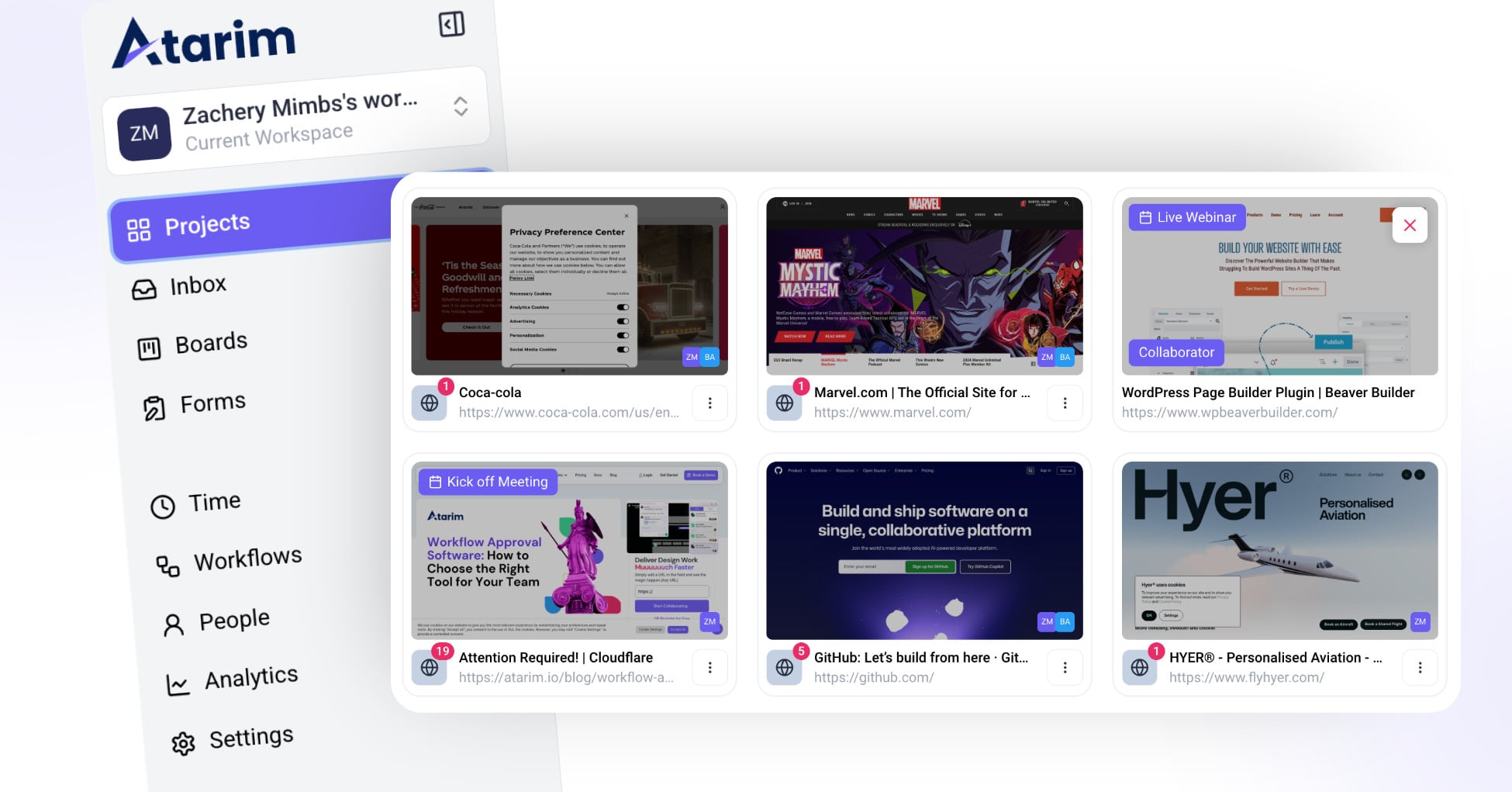
Atarim makes it easy to manage your websites from the Projects screen. Whether a website is added via URL collaboration or the WordPress Plugin, it will appear on your Projects screen with key details such as its name, URL, and task status.
In this article, you'll learn:
- How websites are displayed in Atarim
- The key information shown for each website
- Additional actions you can take to manage websites
How Websites Appear in Your Projects Screen
Adding Websites to Atarim
Websites can be added to Atarim in two ways:
- Via the WordPress Plugin – This allows for deeper integration, including auto-login and direct backend access.
- Via URL Collaboration – Enables feedback on live websites without requiring installations.
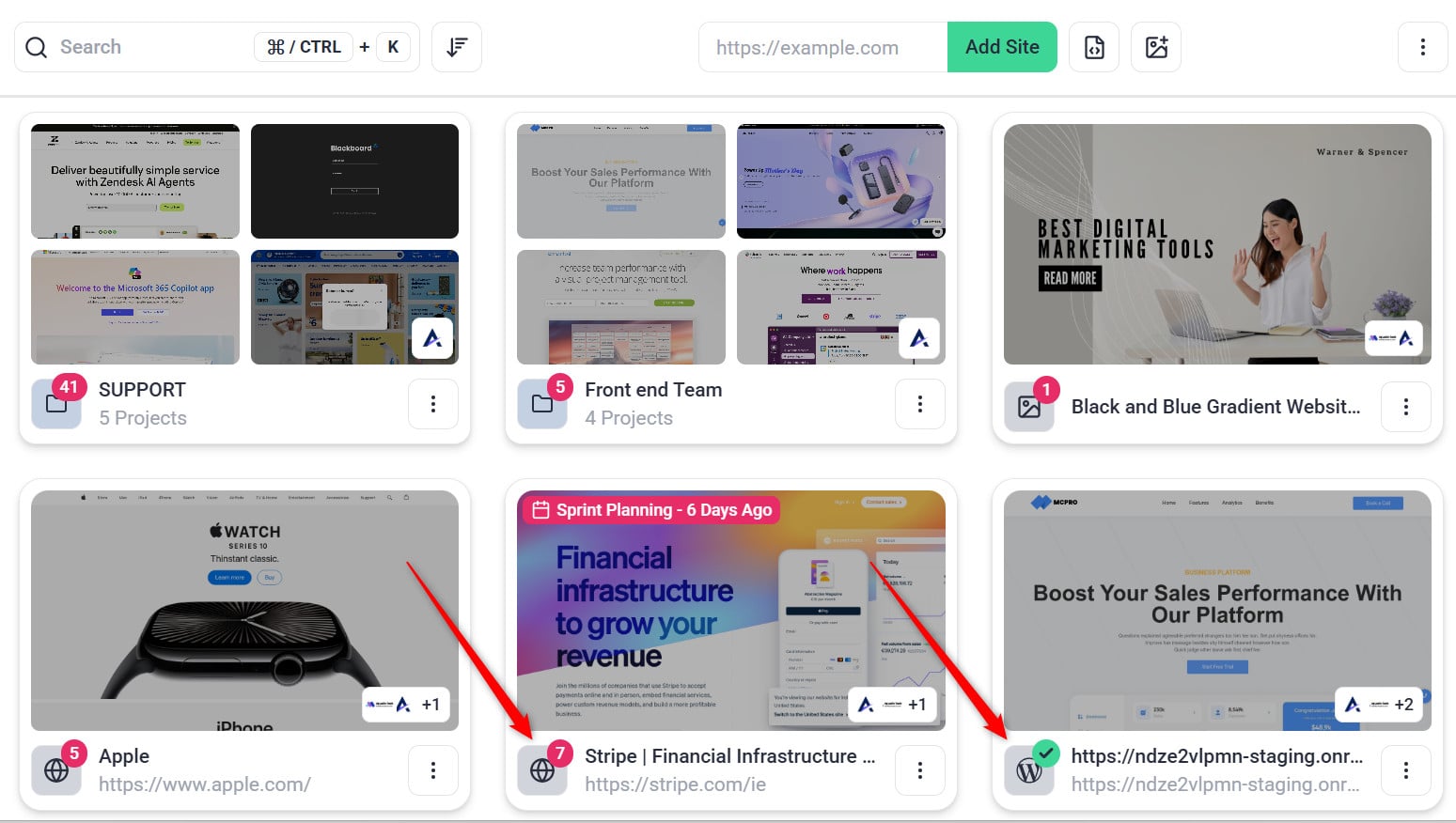
Note: If a project is added via URL, it will display a (World icon). For WordPress Plugin projects, it will show (WordPress icon).
Website Thumbnails & Details
- Each website in your Projects screen displays:
- A Thumbnail – Automatically generated from the homepage of the website.
- Website Name & URL – The title and direct link to the website.
- Task Count – The number of open tasks (completed tasks are not counted).
- Website Type Indicator – Shows whether the site was added via:
- Assigned Users – Displays team members assigned to the website.
Actions You Can Take on Websites
Here are key actions you can perform on the Projects screen:
How to Set Up and Customize Projects in Atarim
- Learn how to quickly add a website using just its public link.
Archiving Websites from Your Dashboard
- Remove inactive websites while keeping their data safe for future reference.
- Access WordPress websites directly from Atarim without manually entering credentials.
Changing the View from Grid to List
Customize how websites are displayed in your dashboard to suit your workflow.
FAQs
Can I add non-WordPress websites to Atarim?
Yes! Any website can be added via URL collaboration, allowing you to leave feedback on live pages.
Can I assign multiple users to a website?
Yes! You can assign multiple team members to collaborate on a single website.
Is there a way to search for specific websites in my Projects screen?
Yes! Use the search bar at the top of the Projects screen to quickly find any website by name or URL.
Conclusion
Managing websites in Atarim’s Projects screen is an efficient way to track tasks, assign users, and organize your projects. Whether collaborating via WordPress or URL, you can easily monitor progress, access key details, and keep projects streamlined.
Tips & best practices
- Organize Websites Using Folders Create folders in the Projects screen to group websites by team, client, or project phase.
- Assign the Right Team Members Ensure that only relevant team members are assigned to each website to streamline collaboration.
- Monitor Open Task Count Regularly Keep an eye on open tasks to ensure projects stay on track and no issues are overlooked.
- Switch to List View for Faster Sorting If you’re managing multiple websites, switching from Grid View to List View makes it easier to scan projects.