Working with External Collaborators and Clients in Atarim
Simplify collaboration and feedback with external stakeholders using Atarim’s centralized platform.
 Visual Collaboration
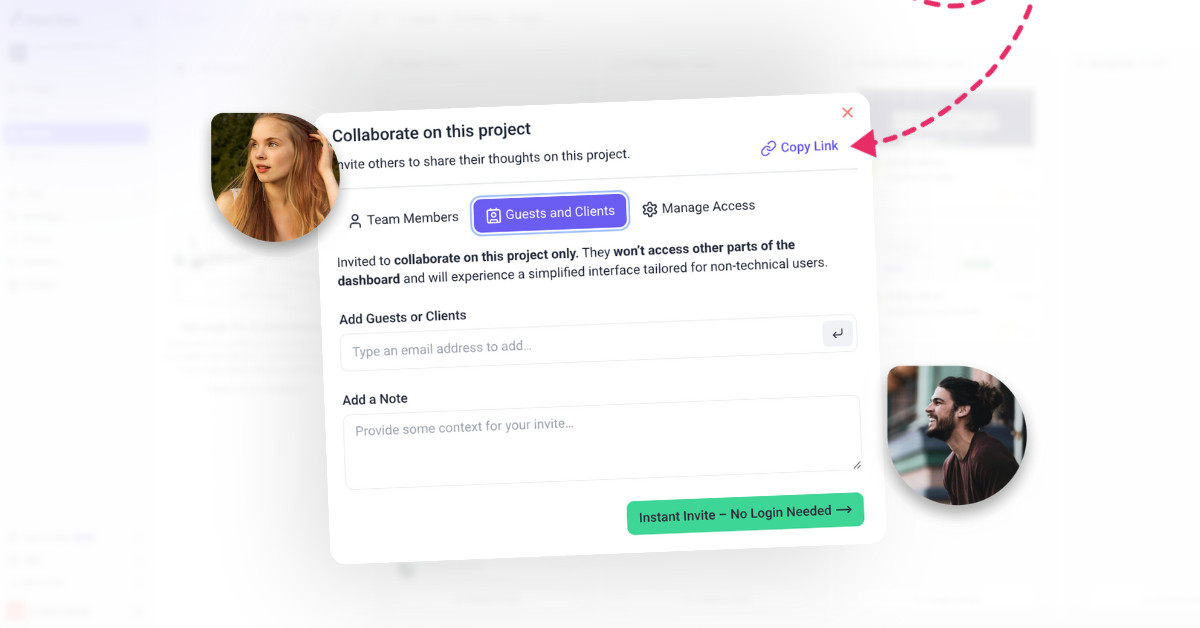
Atarim simplifies collaboration with external stakeholders—such as clients, vendors, or freelancers—by providing a centralized platform for feedback, project tracking, and updates. This article guides you through collaborating efficiently with external parties using Atarim’s tools.
Why It’s Important?
Note: Effective collaboration reduces the need for endless email chains and complex tools, ensuring seamless project alignment and faster approvals.
Step-by-Step Guide
1. Inviting External Collaborators and Clients
Atarim allows you to invite external stakeholders without requiring them to create full accounts. This ensures a seamless experience for clients and collaborators.
Instructions:
- From the Collaboration Screen:
- Click the “Share” button on the project interface.
- Add the client’s name and email address in the invite modal.
- Send the invitation.
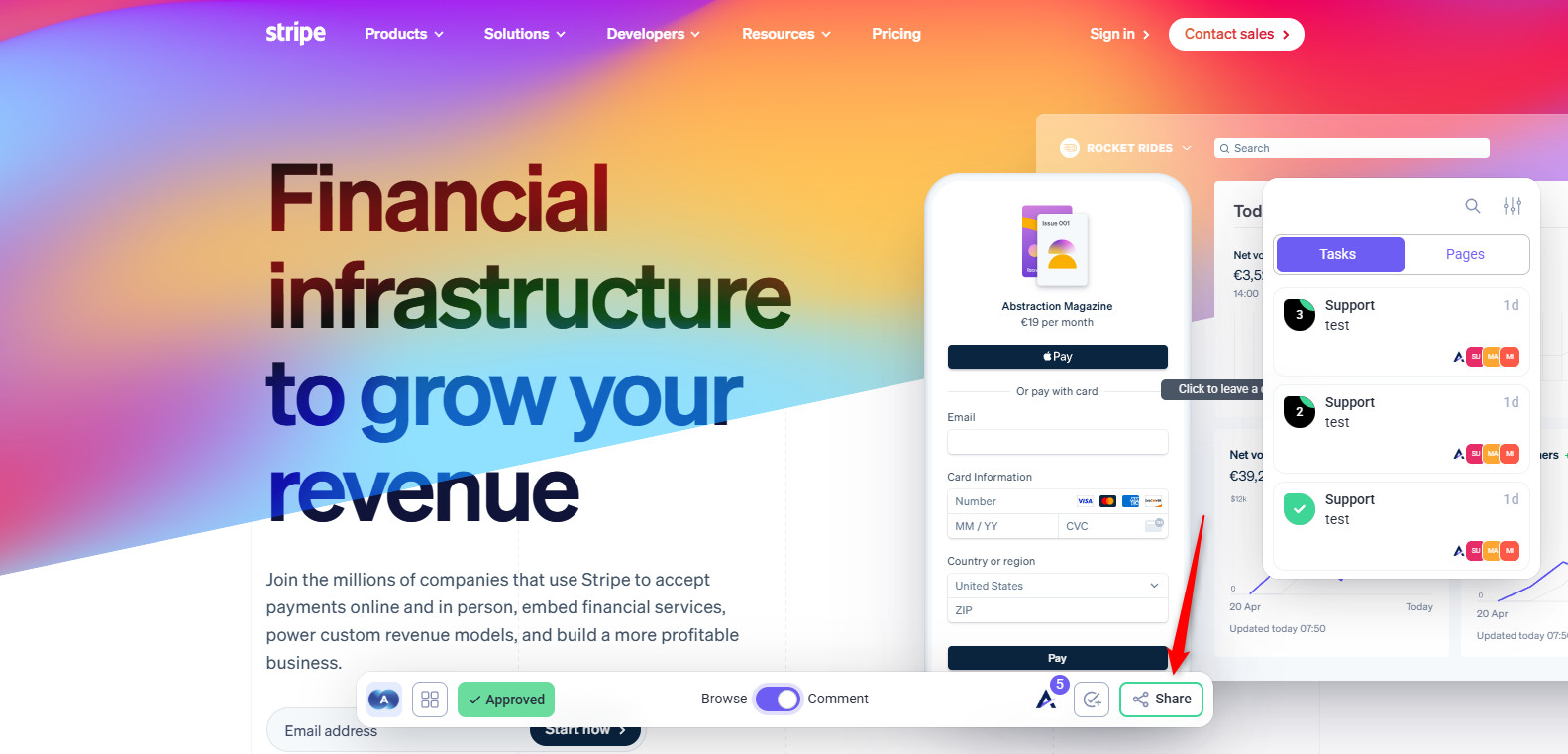
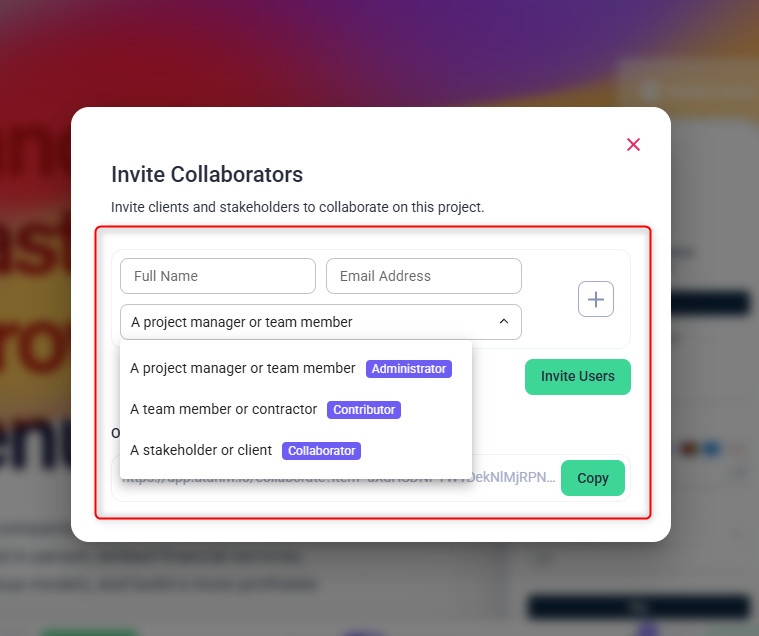
- From the Dashboard:
- Navigate to the specific project.
- Click “Share” from the project settings.
- Follow the same steps as above to invite collaborators.

Tip: Guide your clients through their first steps to ensure they understand how to use the feedback tools.
2. Using Visual Collaboration for Feedback
Atarim’s visual collaboration tools make it easy for external collaborators to leave actionable feedback directly on assets.
Instructions:
- Clients open the page where feedback is required.
- Click directly on the element needing feedback.
- Add a comment in the task popover and submit.
- Each feedback is a task for your team to address.

Recommendation: Encourage clients to leave specific, actionable feedback to avoid ambiguity. Even if they leave vague feedback, the auto screenshot provides you the context you need
3. Managing Feedback and Approvals
Atarim simplifies managing feedback loops by centralizing comments and approvals within the platform.
Instructions:
- Review Comments: Regularly check the comments section for updates.
- Respond: Reply to comments to clarify or confirm tasks.
- Resolve Tasks: Mark comments as resolved after addressing feedback.

Note: Regular updates ensure transparency and prevent project delays.
4. Tracking Project Progress
Transparency is crucial for maintaining trust with external collaborators. Atarim’s email notification ensures stakeholders are always informed.
Instructions:
- Clients can view the progress of tasks and updates on the frontend in the task itself.
- Once tasks are completed, clients can approve or request further changes directly from the task interface.
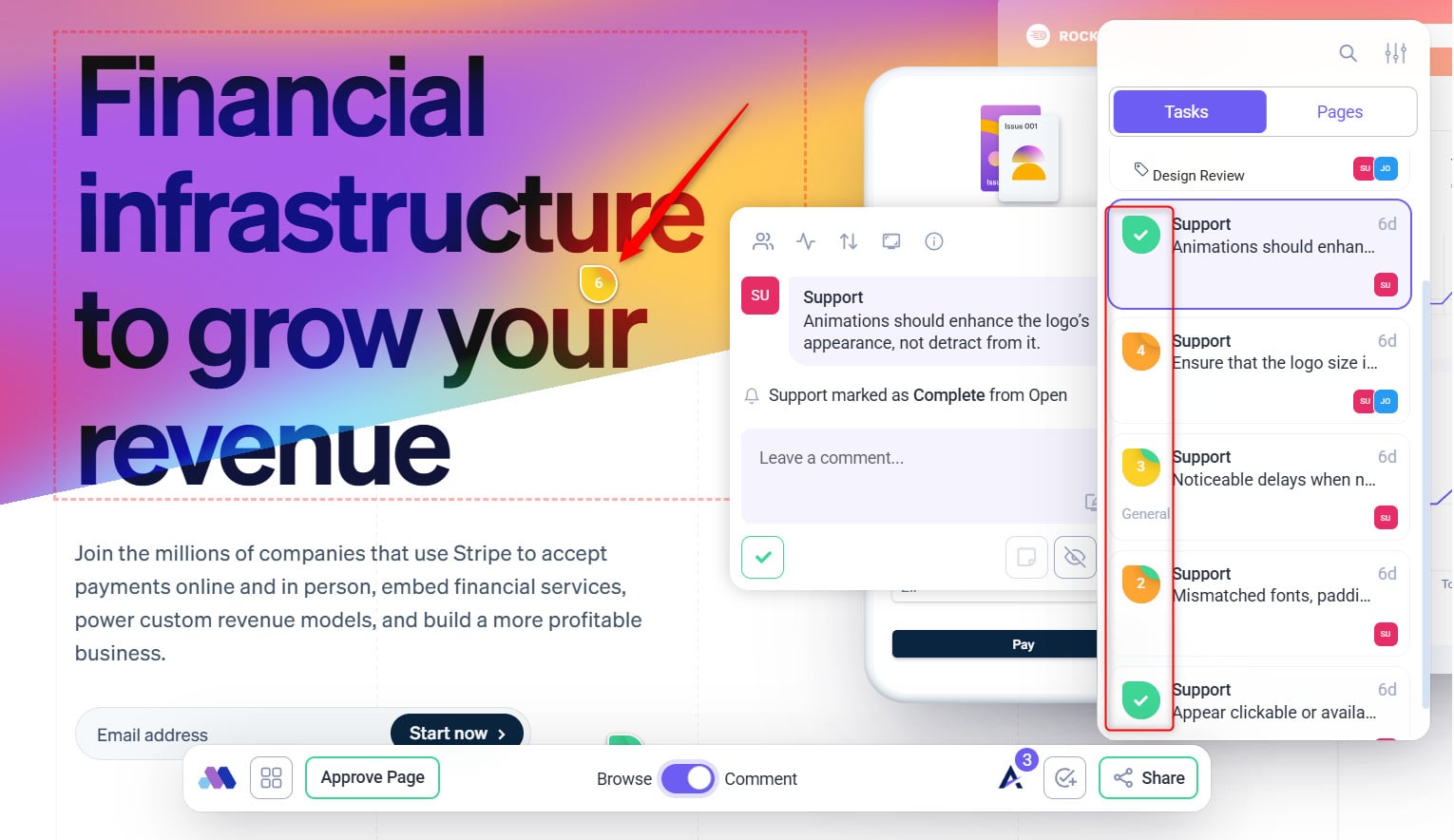
Tip: Regular updates on progress build trust and reduce back-and-forth communication.
FAQs
Can clients leave feedback without creating an account?
Yes, clients can leave feedback through shared links without registering.
What if clients don’t understand the tools?
Provide them with a guided introduction or link to Atarim’s Help Center for tutorials.
Conclusion
Working with external collaborators and clients in Atarim ensures efficient feedback loops, faster approvals, and clearer communication. By leveraging Atarim’s tools, you can reduce revision cycles, improve project transparency, and increase client satisfaction.
Tips & best practices
- Clear Onboarding: Provide clients with a brief walkthrough of Atarim’s tools.
- Structured Feedback: Encourage using comments for specific elements rather than general suggestions.
- Regular Check-ins: Schedule periodic reviews to keep everyone aligned.