Dollie
Seamlessly collaborate and manage website tasks directly from your Dollie dashboard with Atarim.
 Integrations
Step-by-Step Guide
Step 1: Enable the Dollie Integration in Atarim
First, you’ll need to turn on the Dollie integration within your Atarim settings to generate your unique API key.
Instructions:
- Log in to your Atarim Dashboard.
- Go to Settings.
- Navigate to the Integration Settings tab.
- Locate Dollie in the list and toggle it ON.

Note: Make sure you’re logged in with an admin account. Only admin-level users can enable integrations.
Step 2: Copy Your Atarim API Key
Description:
Once the Dollie integration is enabled, you’ll be shown your Atarim API key, which is required to authorize the connection in Dollie.
Instructions:
- Locate the API key displayed beneath the toggle.
- Click the copy icon to copy it to your clipboard.

Tip: Keep your API key secure. Only use it within authorized platforms like Dollie, and avoid sharing it over email or chat.
Step 3: Enable the Atarim Add-on in Dollie
You’ll now activate the Atarim add-on from your Dollie dashboard, which is necessary to proceed with the connection.
Instructions:
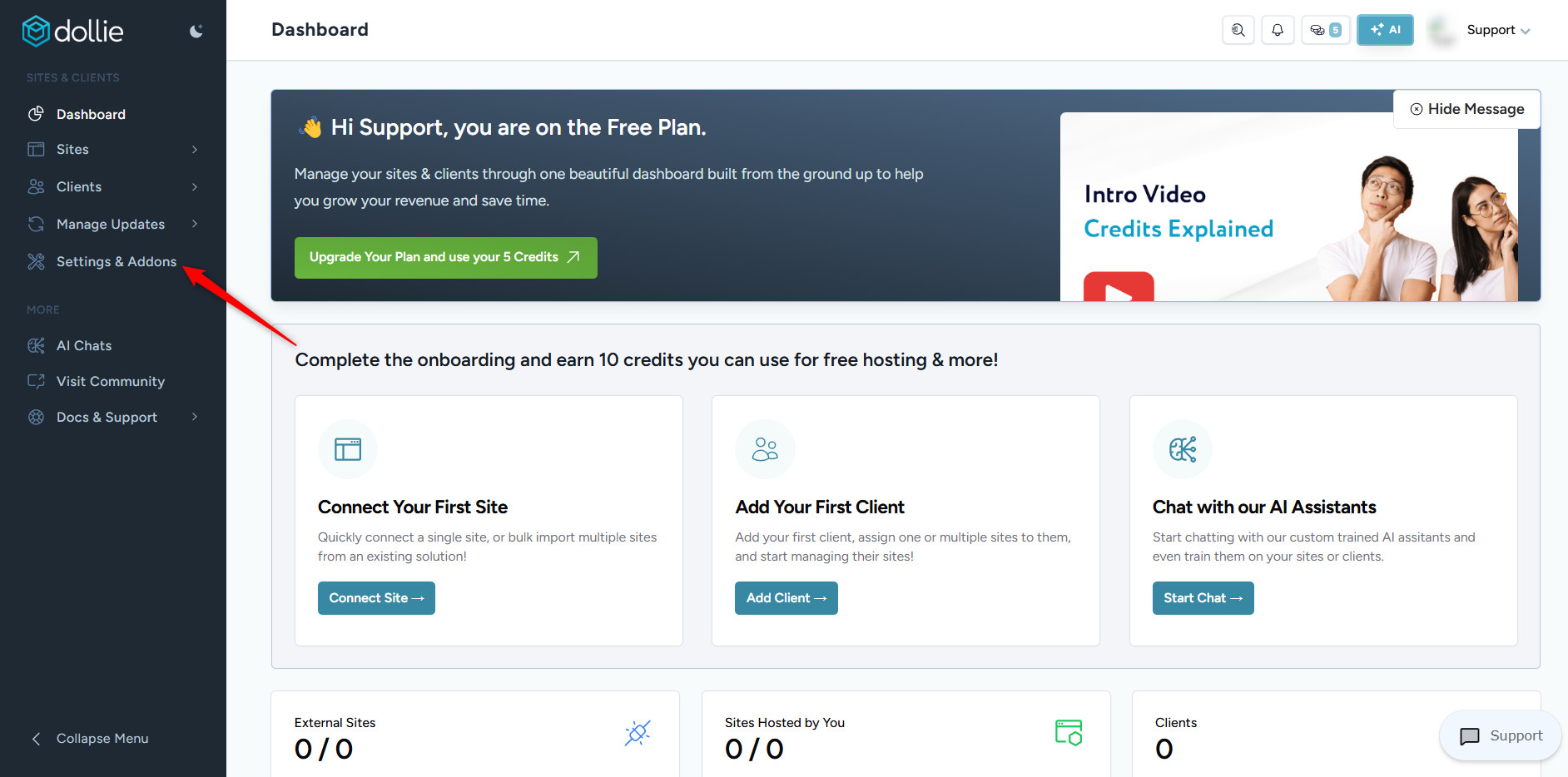
- Go to https://control.getdollie.com/login.
- Log in and navigate to Settings & Addons.
- Scroll to find Atarim in the available add-ons.
- Click Activate.

Recommendation: If you don’t see Atarim listed, confirm that your user role has permission to manage add-ons in your Dollie plan.
Step 4: Enter Your API Key and Email in Dollie
Now you’ll configure the add-on by linking it to your Atarim account.
Instructions:
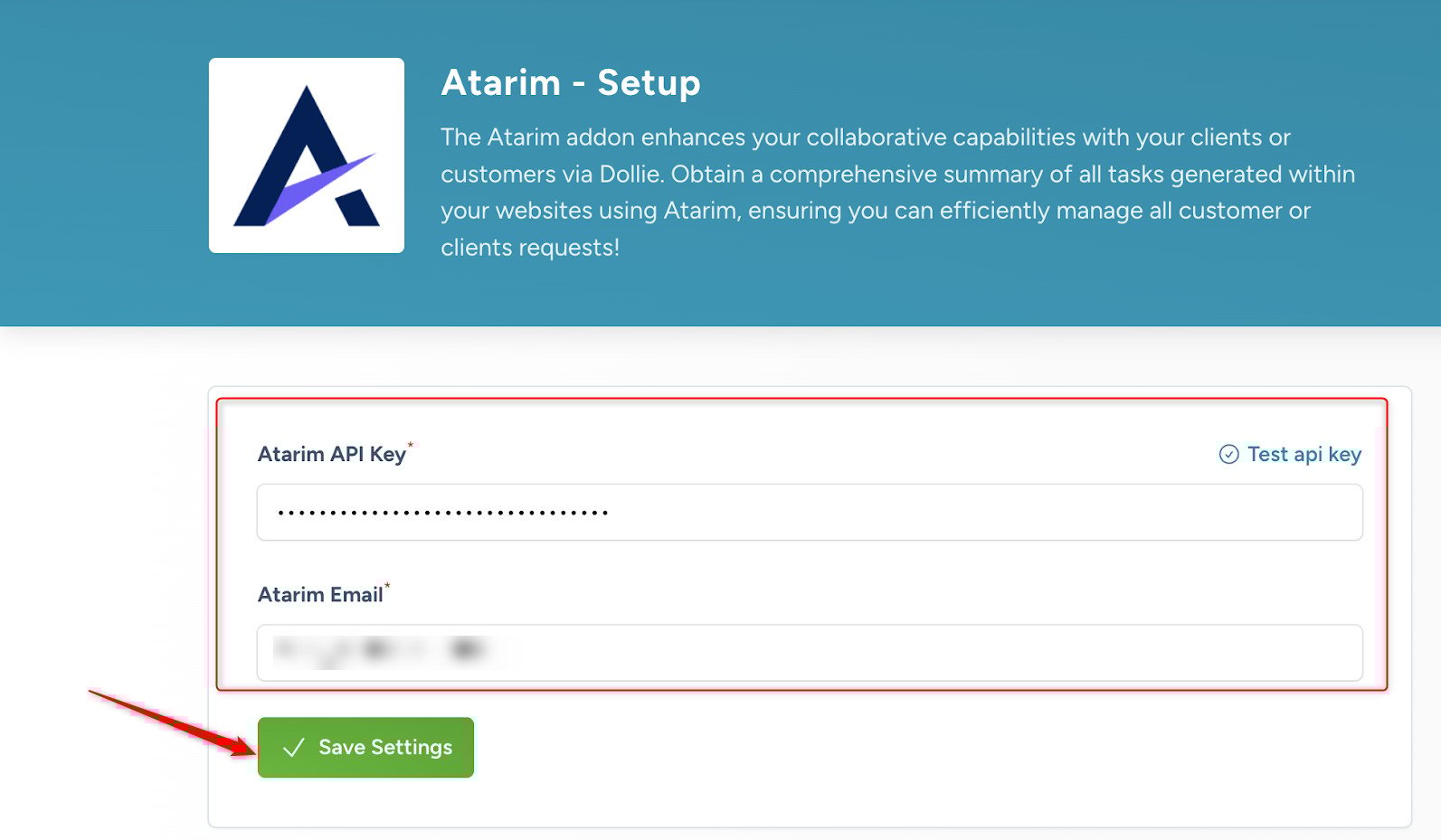
- Click Configure next to the Atarim add-on.
- In the setup form, enter:
- Your Atarim API key
- The email address associated with your Atarim account
- Click Save Settings.
- Click Test API Key to verify the connection.


Note: Ensure that the email address entered matches exactly with your Atarim login (case-sensitive). A mismatch will prevent successful authentication.
Step 5: Verify the Integration in Dollie
Once the test is successful, you’ll see the Atarim integration in action from within your Dollie Sites dashboard.
Instructions:
- Navigate to Sites – View Sites.
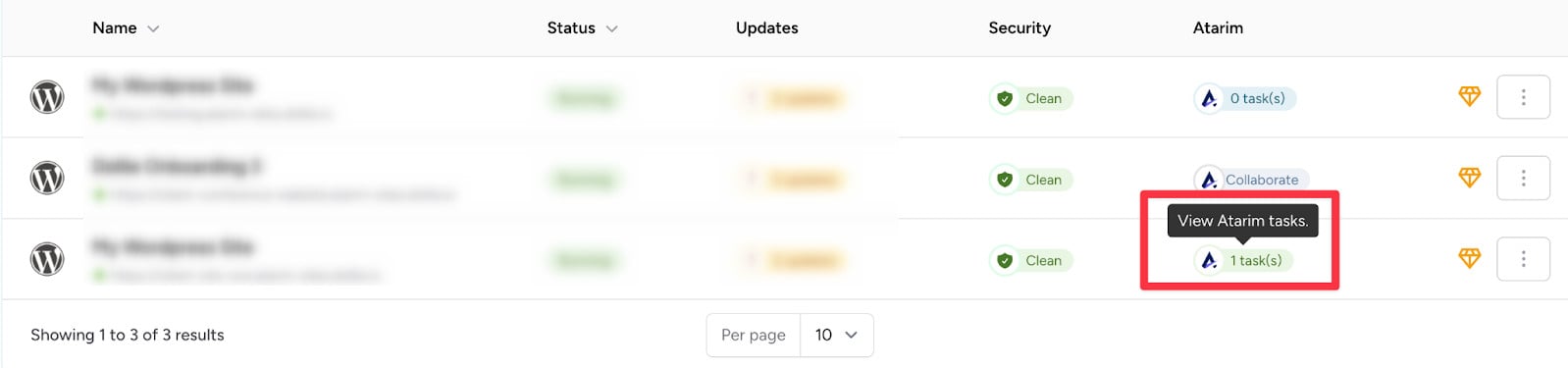
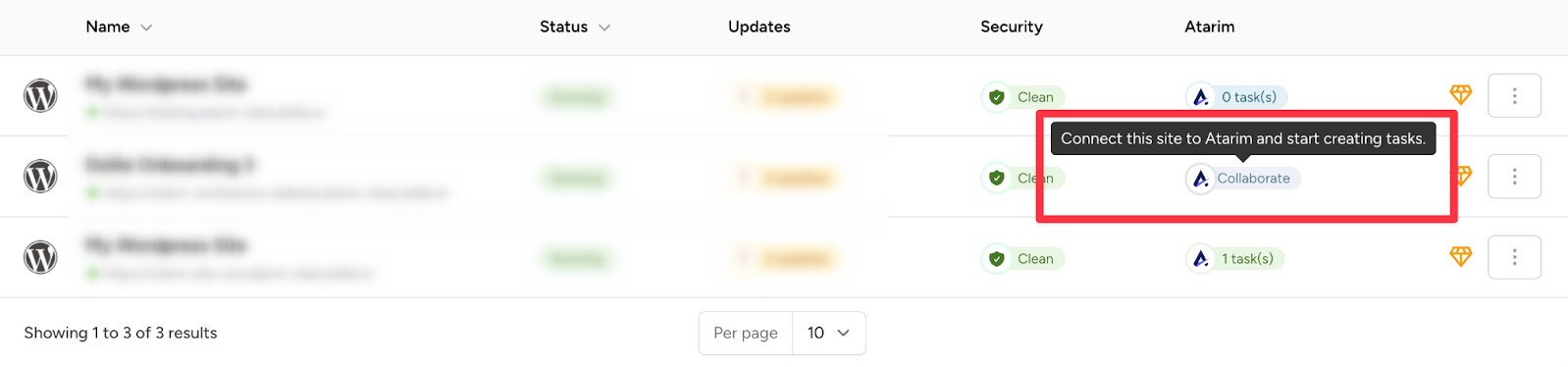
- Look for the new Atarim column on the far right.
- This column will show:
- A “Collaborate” button for unlinked sites (creates new projects)
- A task count icon for linked sites (shows number of tasks)


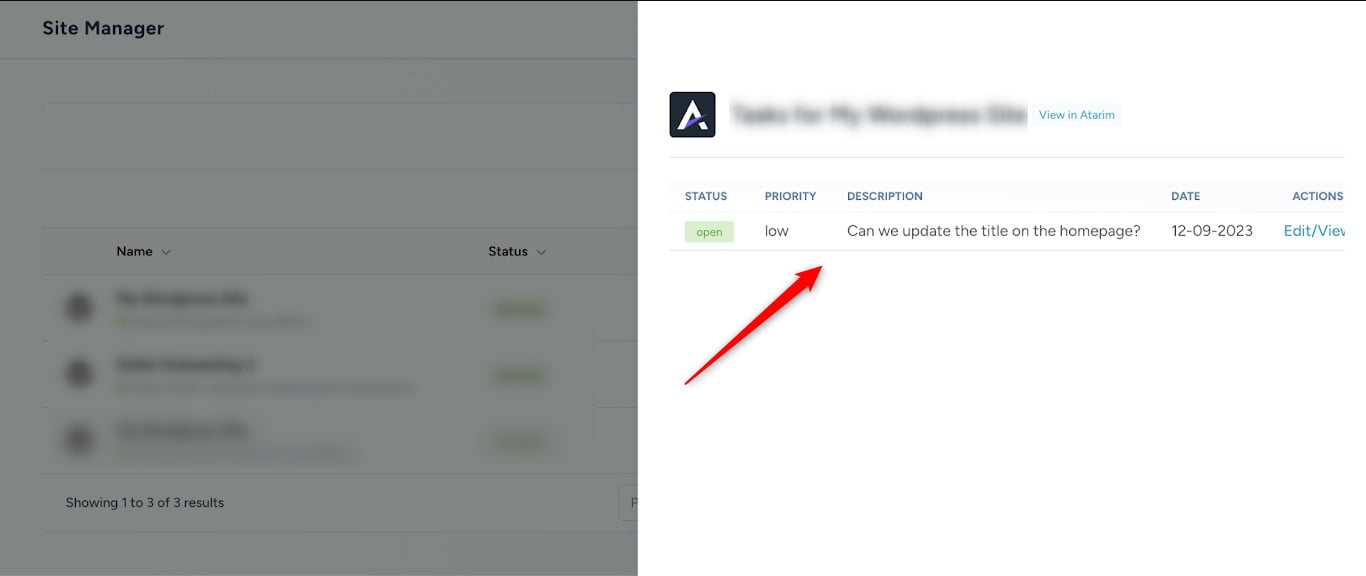
Tip: Clicking the task icon opens a side panel with all active tasks for the connected site—no need to log into Atarim separately.
Step 6: Using the Integration
With the integration active, your team can manage client feedback more efficiently—without leaving Dollie.
Instructions:
- Click the task count to view Atarim tasks for a linked site.
- Click the Collaborate button to create a new project and create tasks in Atarim.
Recommendation: Encourage team members to use the Atarim panel in Dollie for updates, reducing context switching and improving focus.
Video Walkthrough
Prefer to watch it in action?
FAQs
What does the Atarim-Dollie integration do?
It allows you to start collaborating on websites from Dollie and view Atarim tasks directly in Dollie.
Which Atarim plans support this integration?
The integration is available on Atarim Pro, Business, and Enterprise plans.
Do I need a separate Atarim account to use this integration?
Yes, you must have an active Atarim account linked to your Dollie dashboard.
Can I use this integration if I’m not an admin in Atarim?
No. Only admin users can enable integrations and access the API key.
What if my API key fails during testing?
Check for typos and ensure the email matches your Atarim admin login exactly.
Conclusion
Integrating Atarim with Dollie allows you to manage website collaboration directly from your Dollie dashboard, track tasks across multiple websites at a glance, and streamline project workflows with seamless syncing between both platforms.
Tips & best practices
- Access the Atarim Task Panel in Dollie to quickly view and manage website tasks without leaving the platform.
- Encourage team collaboration within Dollie to minimize platform switching and improve efficiency.
- Regularly review unresolved tasks to keep website projects up to date.
- Test the API connection after setup to ensure seamless communication between Atarim and Dollie.
- Use the Atarim project creation feature to instantly link sites to Atarim from Dollie.