Familiarity with Figma & Awareness of how Atarim projects and design feedback works
Tools & resources needed
Figma account
Active Atarim workspace
Atarim plugin installed in Figma
Access to a design file
The Atarim Figma Plugin allows you to push design frames directly from Figma into Atarim — where feedback is centralized, actionable, and trackable.
Instead of juggling scattered Figma comments or duplicating frames to track versions, this plugin transforms design collaboration into a structured workflow that fits naturally into your existing Atarim environment.
Why Use Atarim Instead of Native Figma Comments?
Figma comments are great for lightweight collaboration — but once projects grow, stakeholders multiply, or feedback needs tracking, they fall short. That’s where the Atarim Figma Plugin comes in. Atarim gives you the structure, visibility, and control that native Figma comments can’t — especially when clients, devs, and cross-functional teams are involved.
1. Deeper Collaboration Tools
Native Figma comments are great for quick notes — but they stop there.
With Atarim, you unlock:
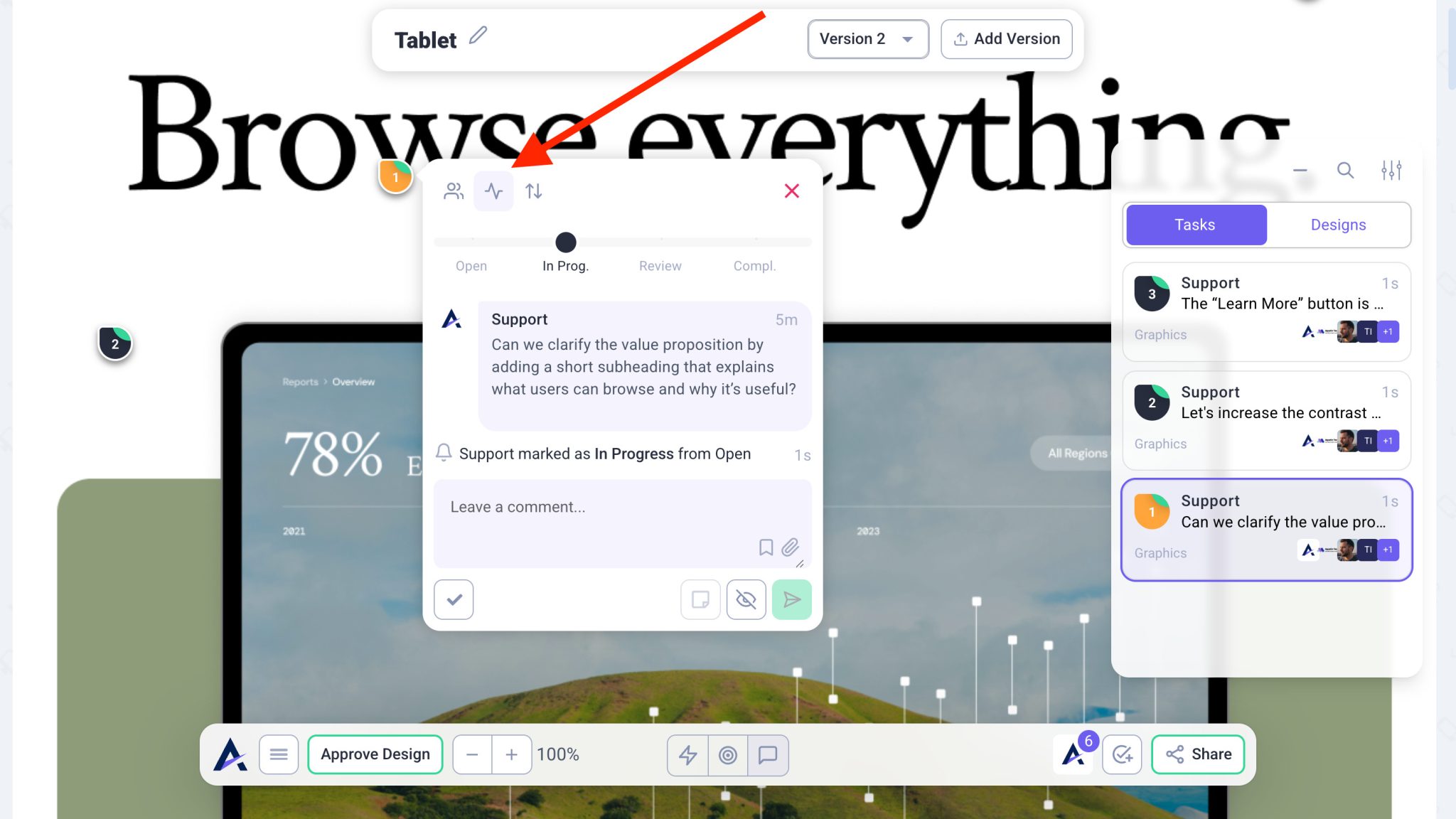
Task statuses (Open, In Progress, Review, Completed)
Priority levels (Low, Medium, High, Critical)
Task assignments
Internal-only notes (hidden from clients)
Integrations with tools like Jira, ClickUp, and Slack
Our tool turns feedback into actionable work, not forgotten comments.
Updating a Task’s Status
Warning: Avoid relying solely on Figma comments — they can get buried or forgotten.
2. Centralized Communication
Figma comments live only inside a single file.
Atarim centralizes:
All design feedback
Tasks across multiple projects
Inbox and board views for execution tracking
This prevents feedback from falling through the cracks and eliminates the need to jump between files just to find comments.
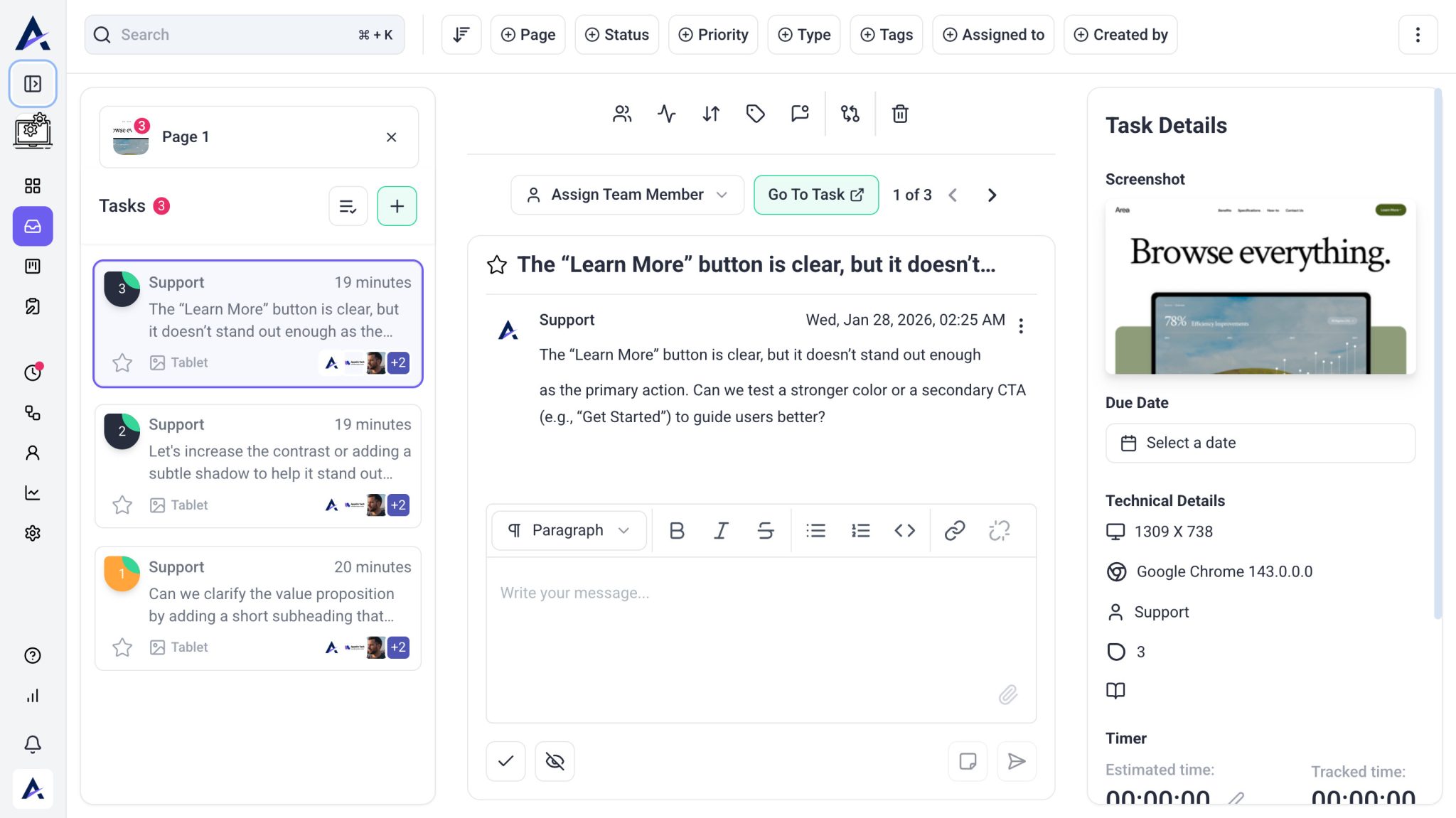
Managing Design Feedback from a Single Inbox
Note: Atarim’s Inbox and Boards let you see all tasks, from any design or website — even across workspaces.
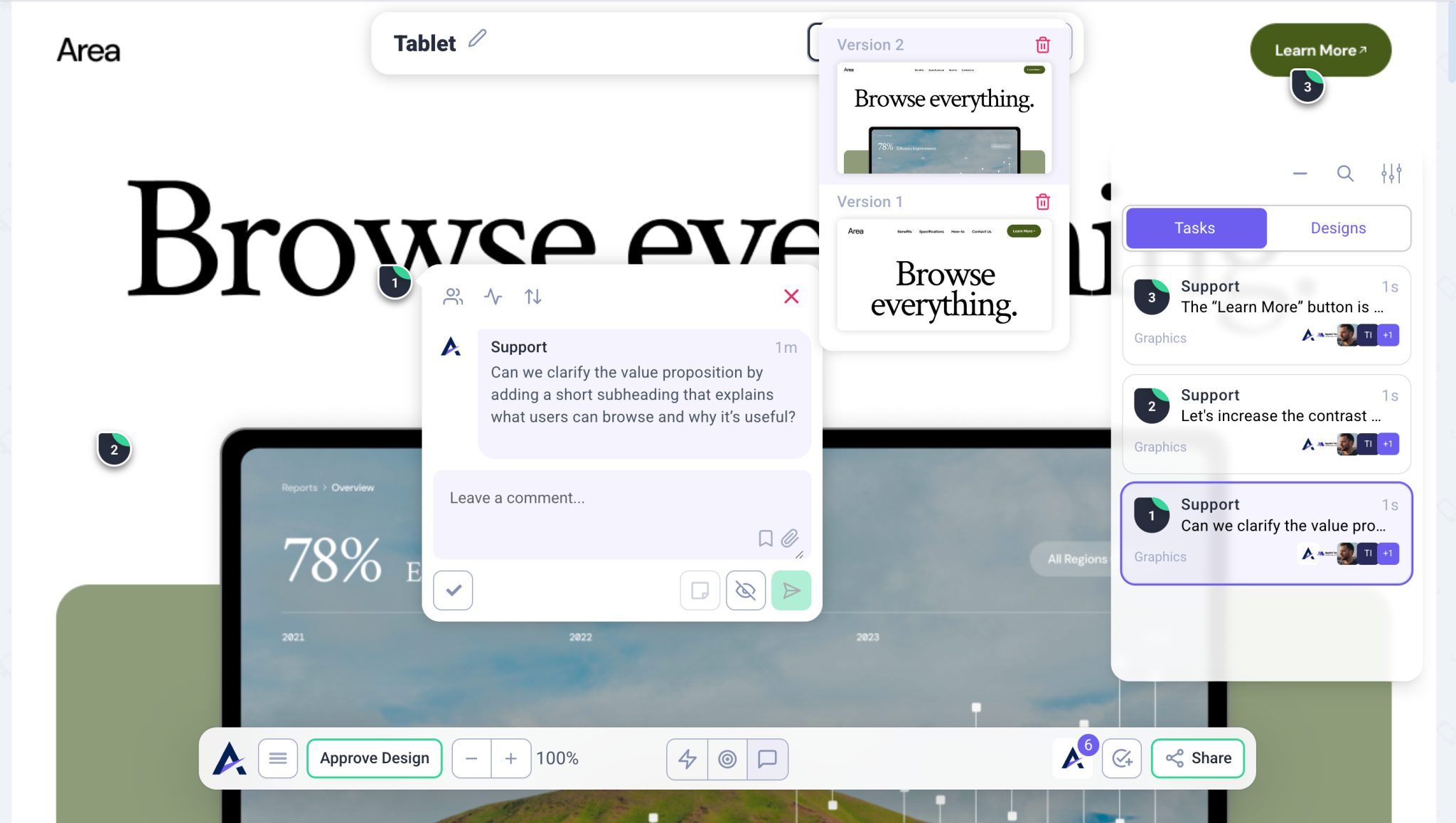
3. Version Control
Version tracking in Figma can quickly become messy.
With the Atarim Figma Plugin:
Every push can be saved as a new version
You can track how many revisions a design went through
Stakeholders clearly see progress over time
This creates transparency and helps manage endless revision cycles.
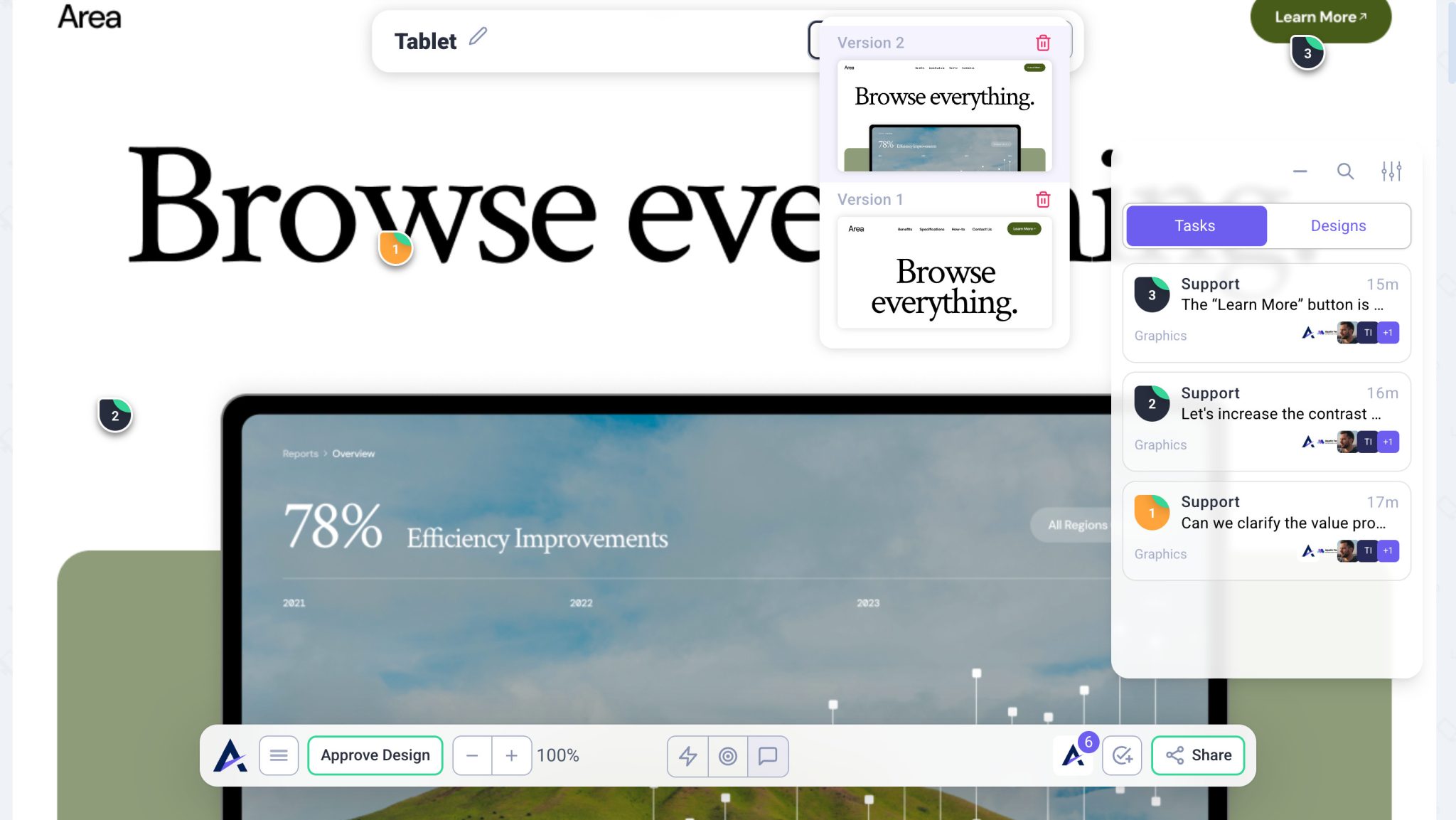
Version Control for Design Feedback
Tip: Push a new version after each major revision round to maintain a clean version history.
How to Install the Atarim Figma Plugin
Learn how to install and launch the Atarim Figma Plugin so you can send designs directly into your Atarim workspace for fast, visual feedback and collaboration. This will walk you through accessing the plugin from inside your Figma file and getting started in just a few clicks.
Step 1: Open the Plugins Menu
Instructions:
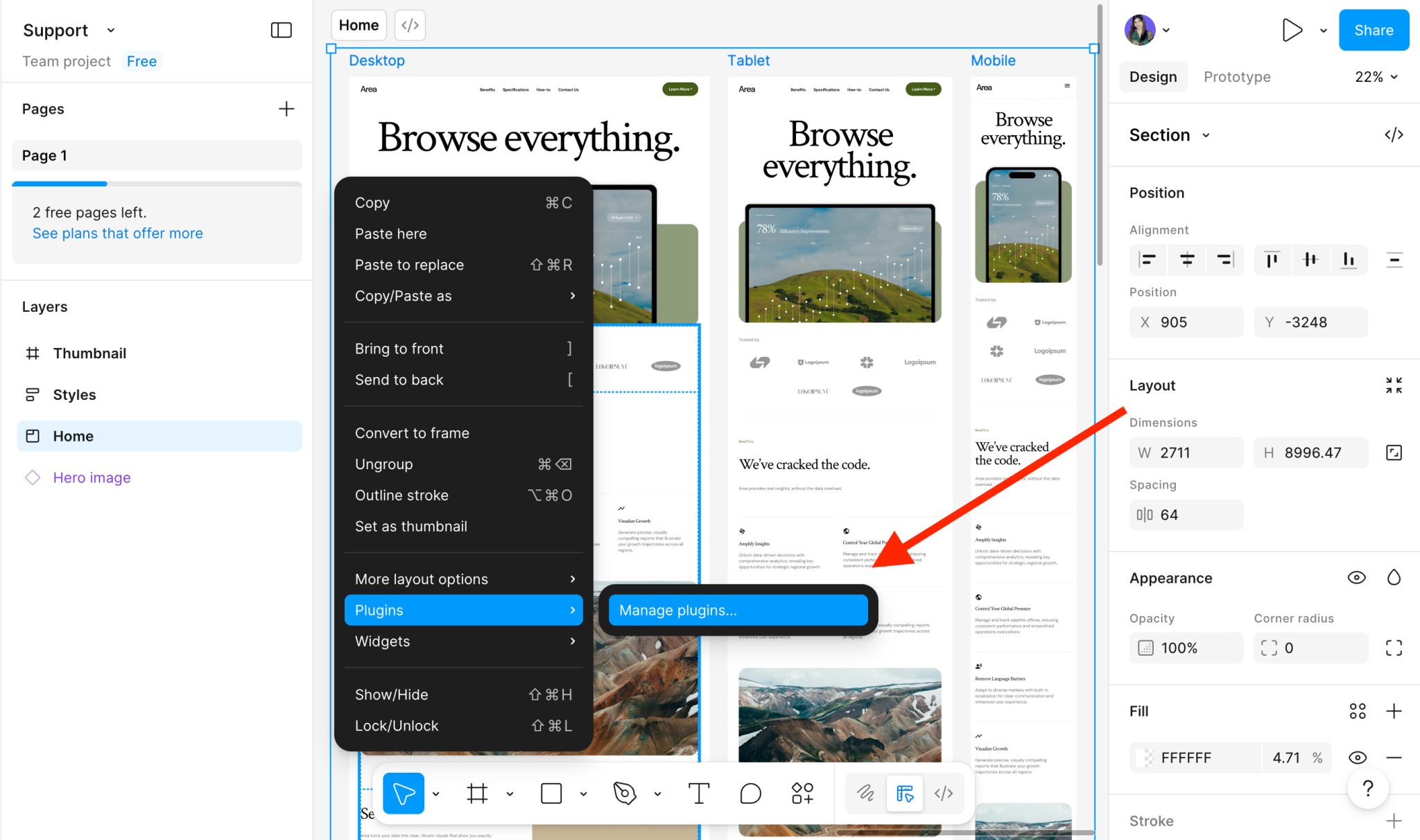
Right-click anywhere inside your Figma canvas
Select Plugins
Open Plugins Menu
Step 2: Install the Plugin (First-Time Only)
Instructions:
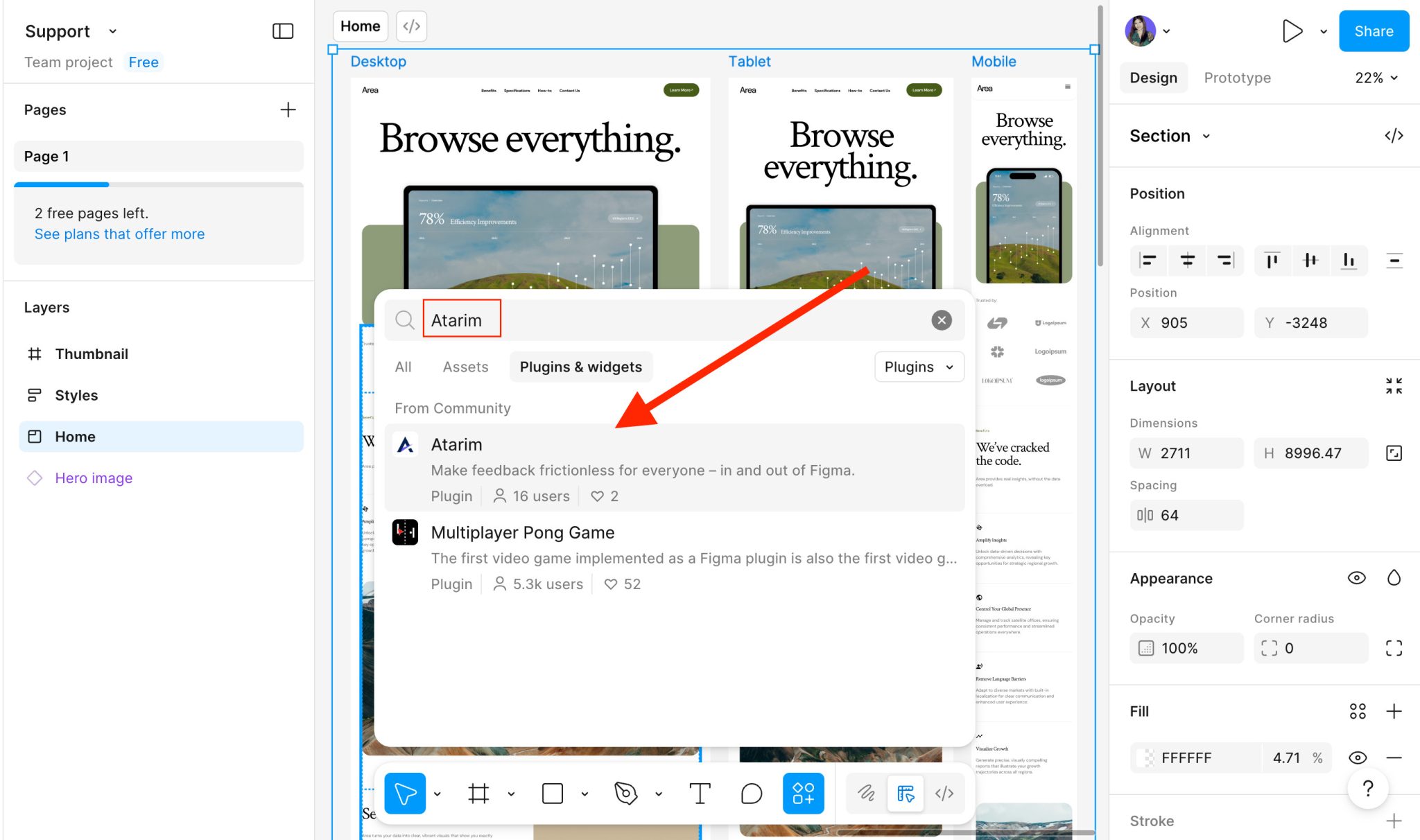
Select Manage Plugins
Search for Atarim
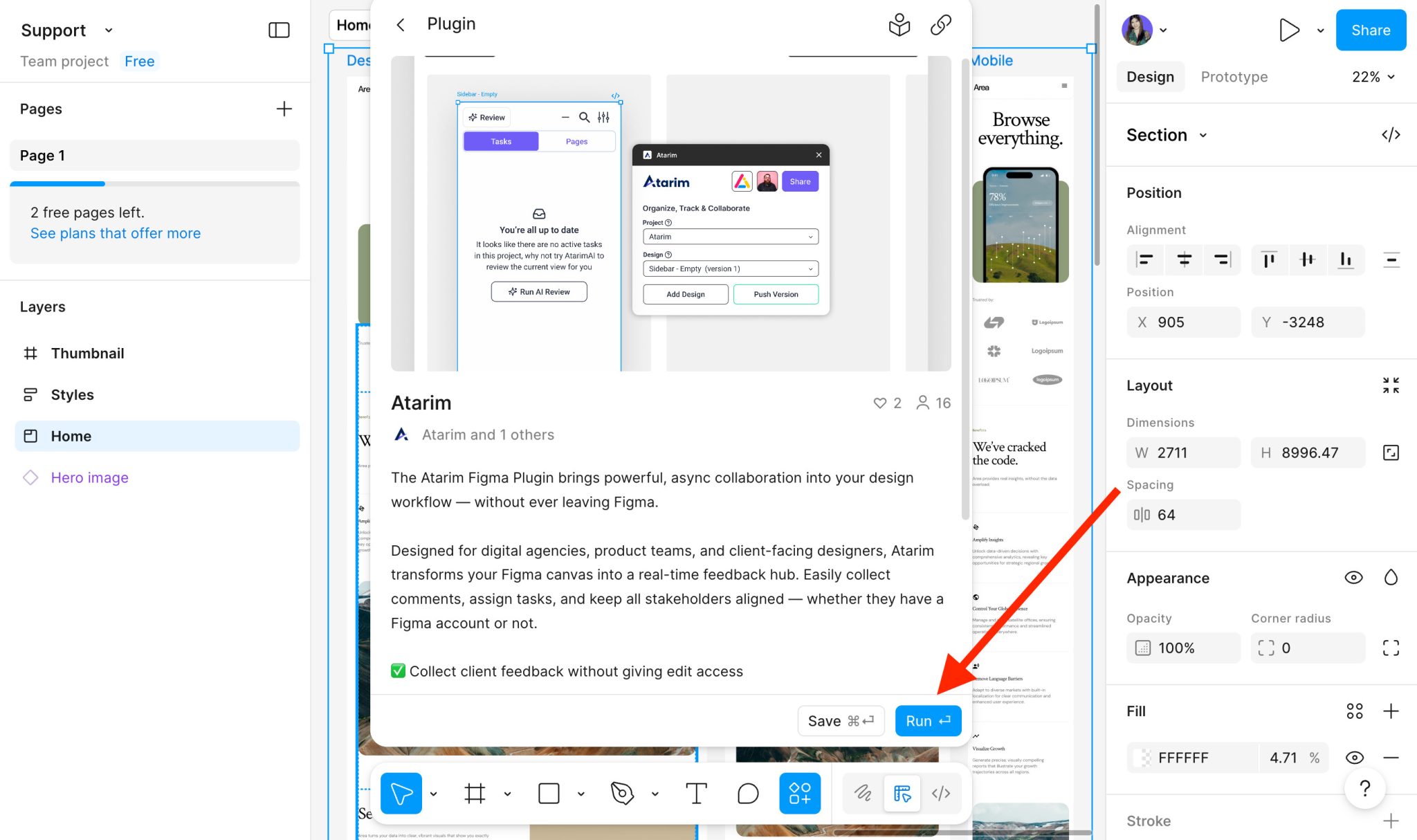
Click Run to install
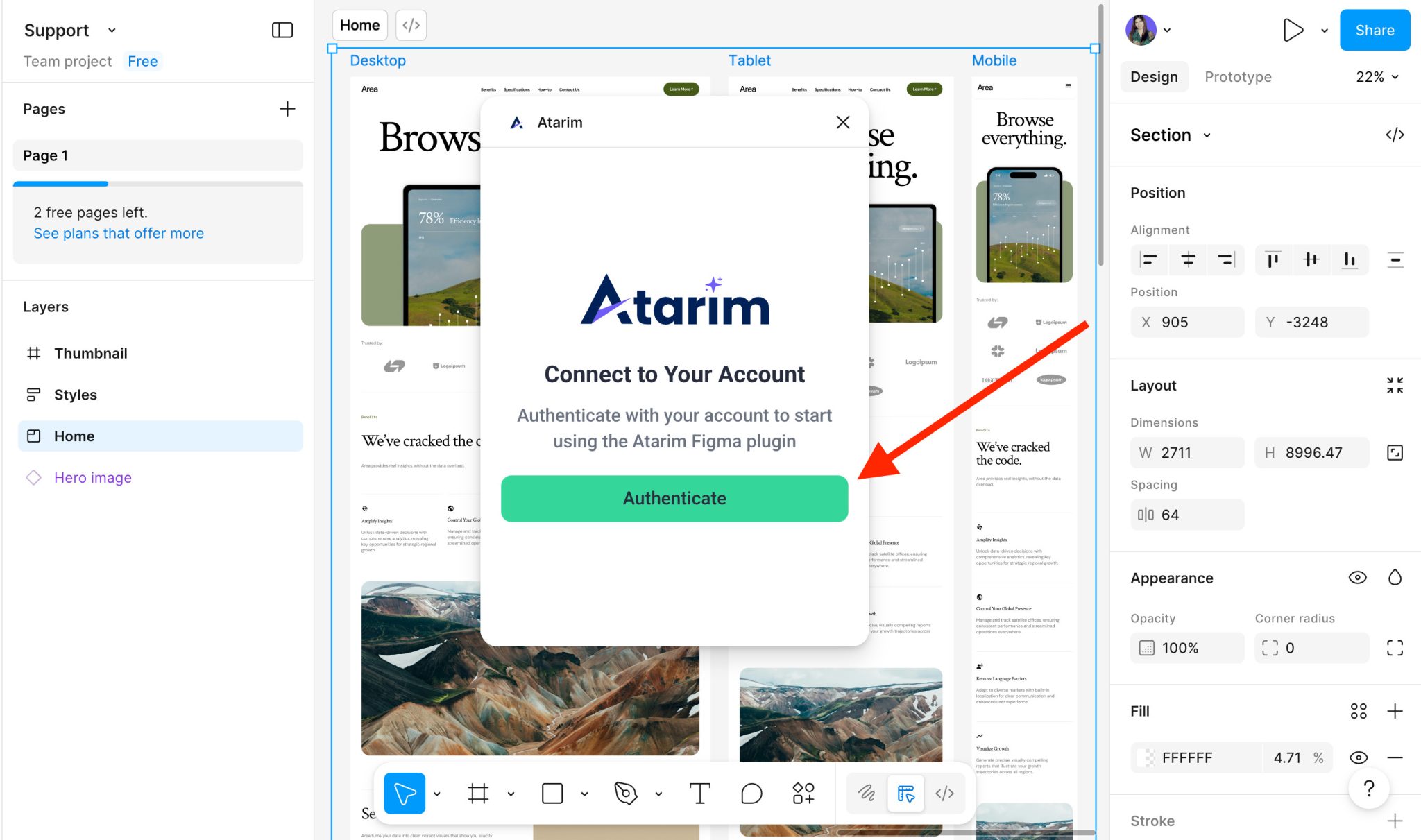
Click Authenticate
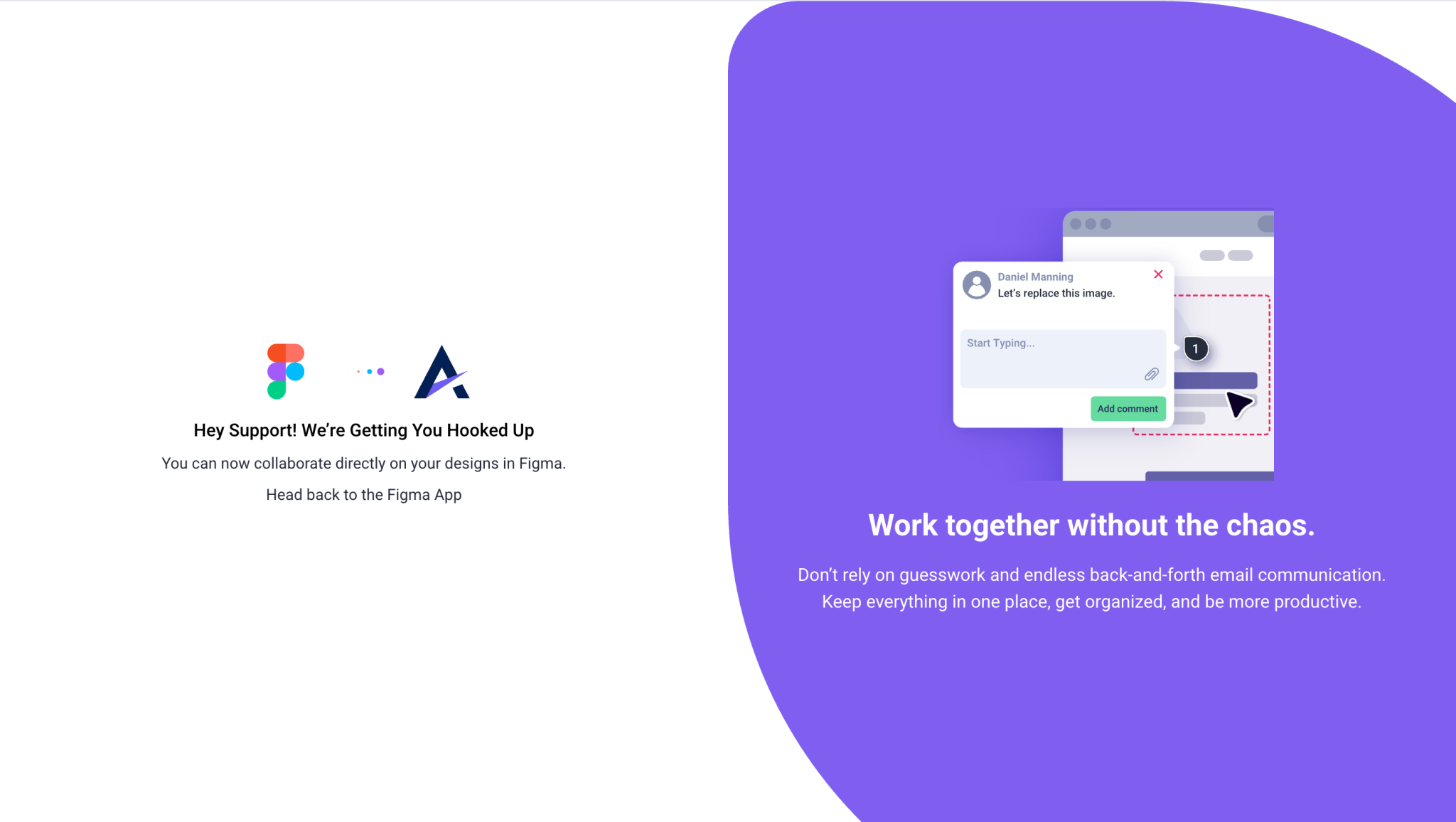
Return to the Figma app
Search for Atarim
Click Run to install
Authenticate your account
Authentication Complete
Tip: You only need to install the plugin once. After installation, it will be available in all your Figma files.
Step 3: Launch the Plugin
Instructions:
Right-click on the canvas again
Go to Plugins → Atarim
Atarim Figma Plugin
Note: The plugin will open and automatically connect to your Atarim workspace if you’re logged in
How to Push Designs from Figma into Atarim
Easily send your Figma designs into Atarim for visual feedback and collaboration with your team or clients. This guide explains how to select frames or entire canvases and push them into your workspace in just a few clicks — no exporting or slicing needed.
Step 1: Select Frames
Instructions:
Select a specific frame to push one design
Select nothing to push the entire canvas as one page
Selecting Frames to Push
Tip: Selecting individual frames makes feedback more organized and reduces client confusion.
Step 2: Create a New Project
Instructions:
Open the Atarim Plugin
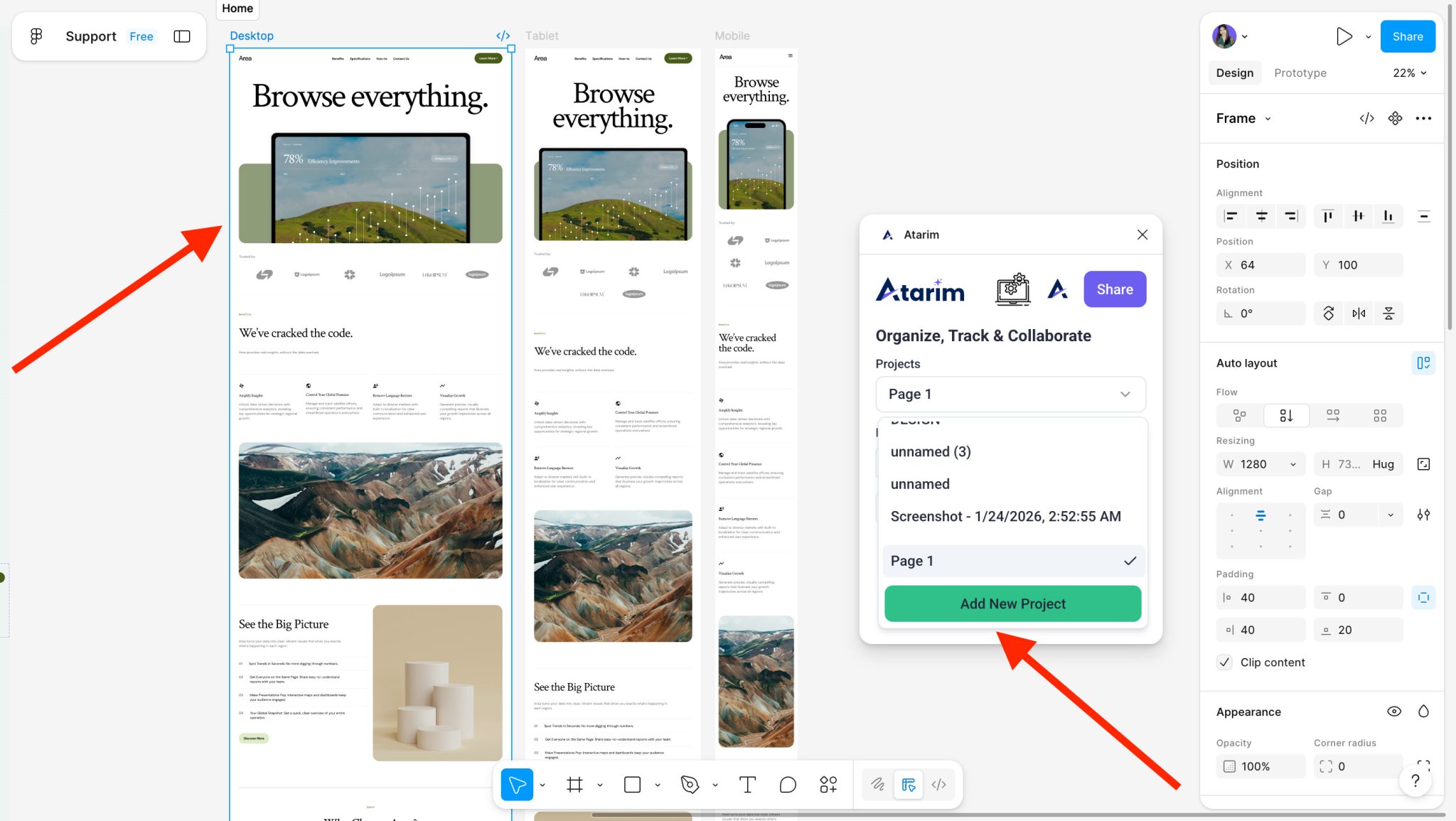
Click Add New Project
The project name will automatically match your Figma design (you can rename it later)
Create a New Project
Note: This creates a graphics project inside Atarim, not a web project.
Step 3: Add Designs to Pages
Instructions:
Select a frame
Choose or create a Page
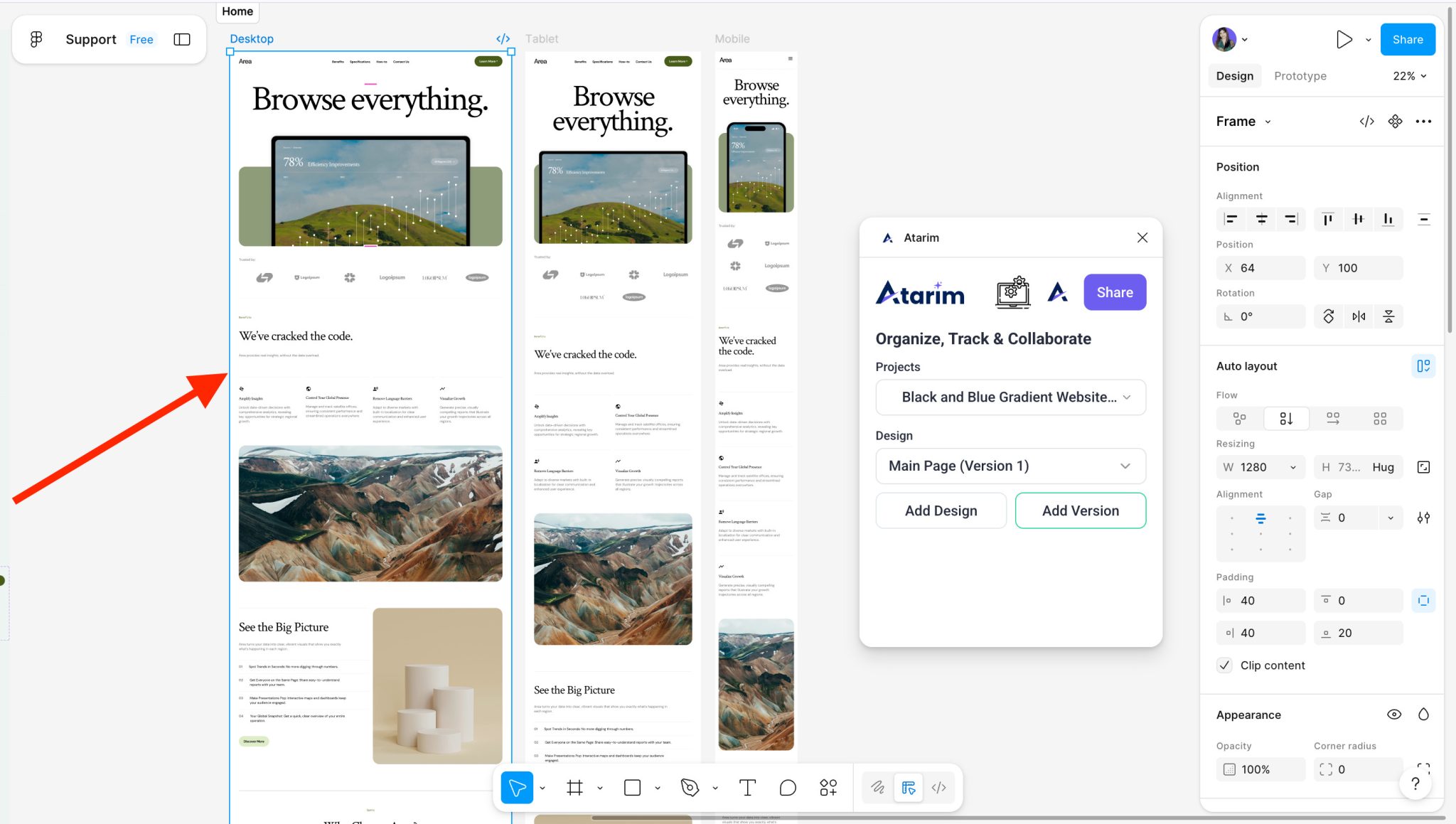
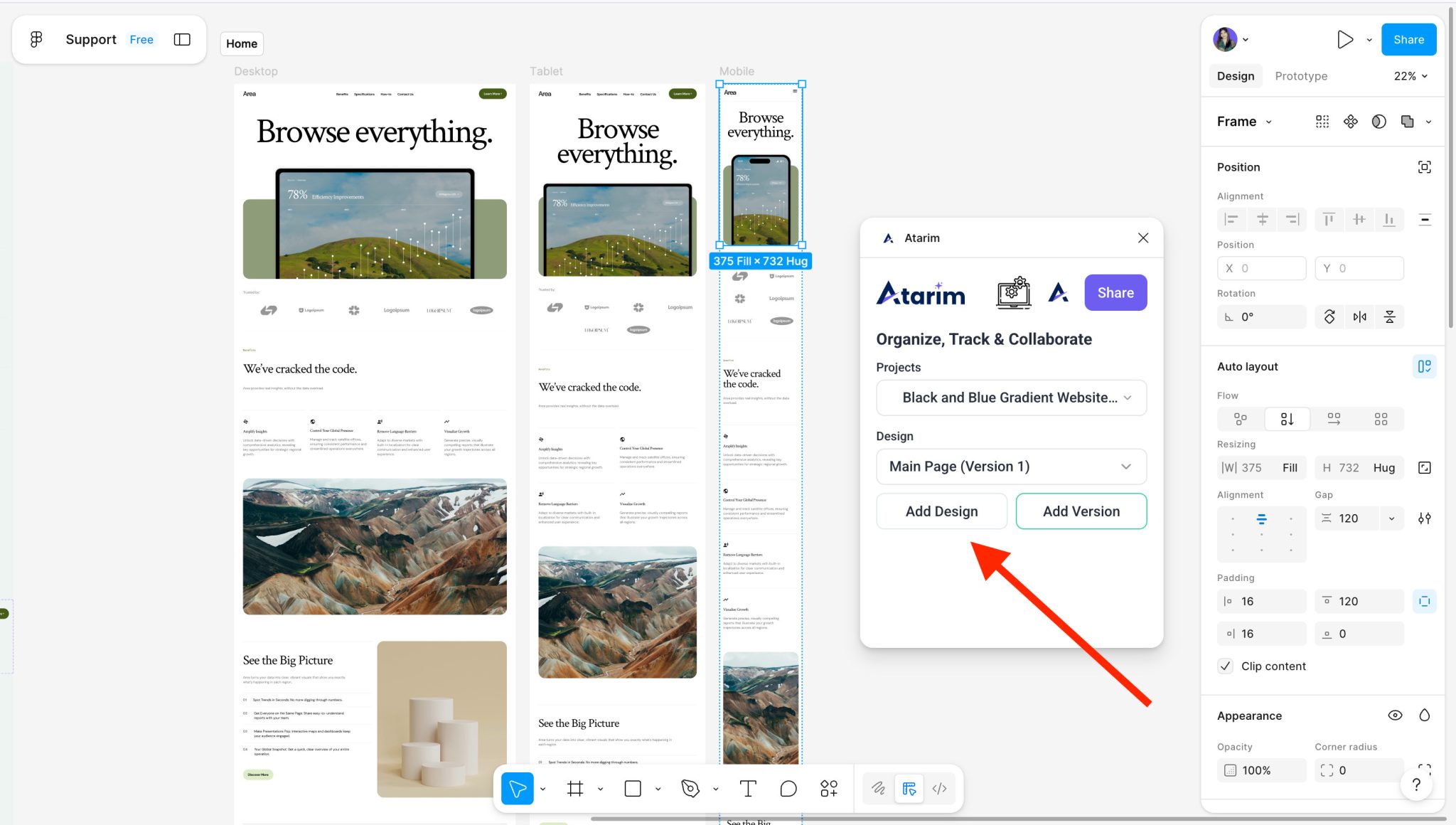
Click Add Design
Repeat for each relevant frame
Add Design to a Page
Warning: Avoid adding unrelated frames to the same page — this makes feedback harder to manage.
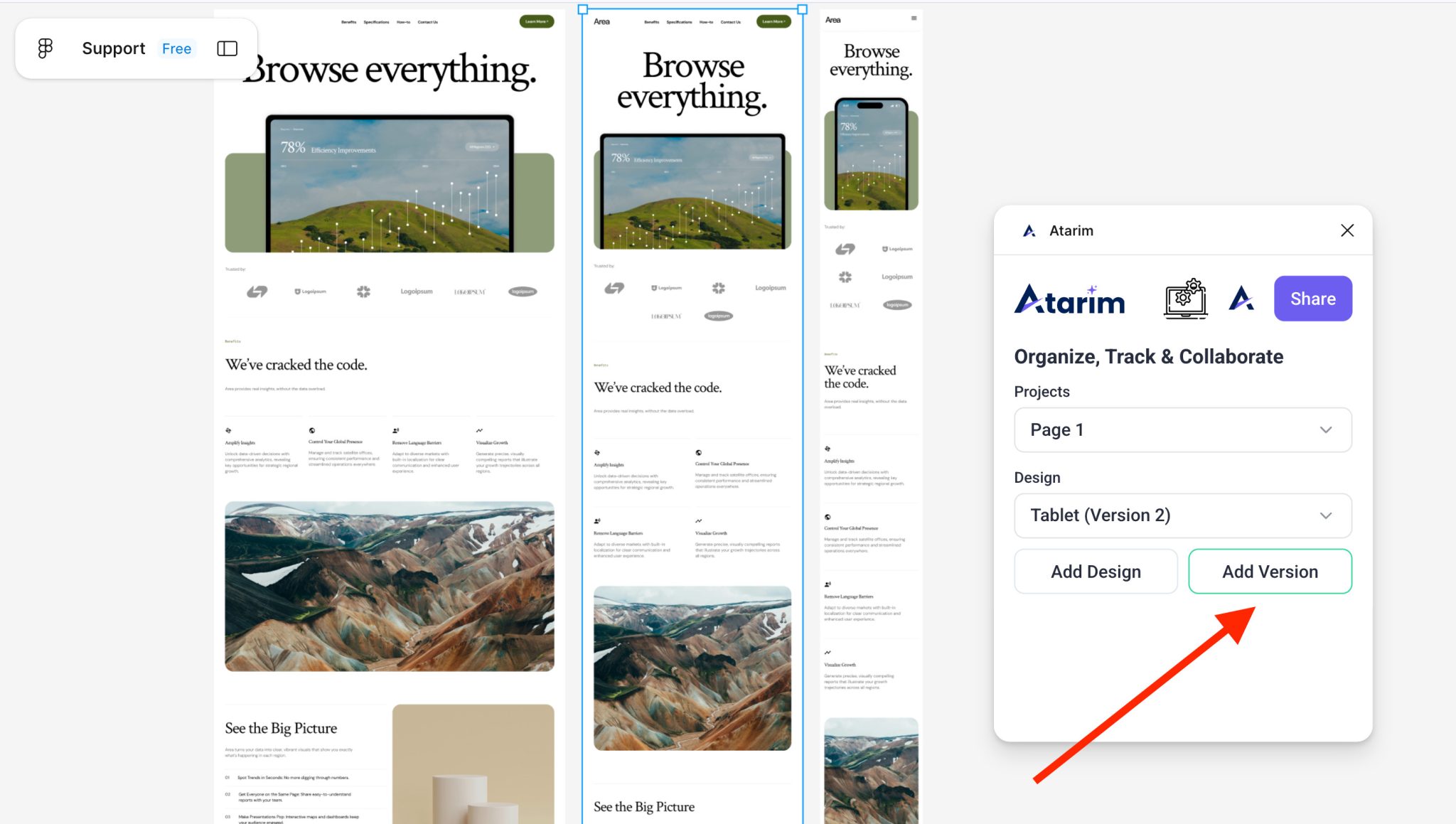
Step 4: Add New Versions
When your design changes:
Select the new frame
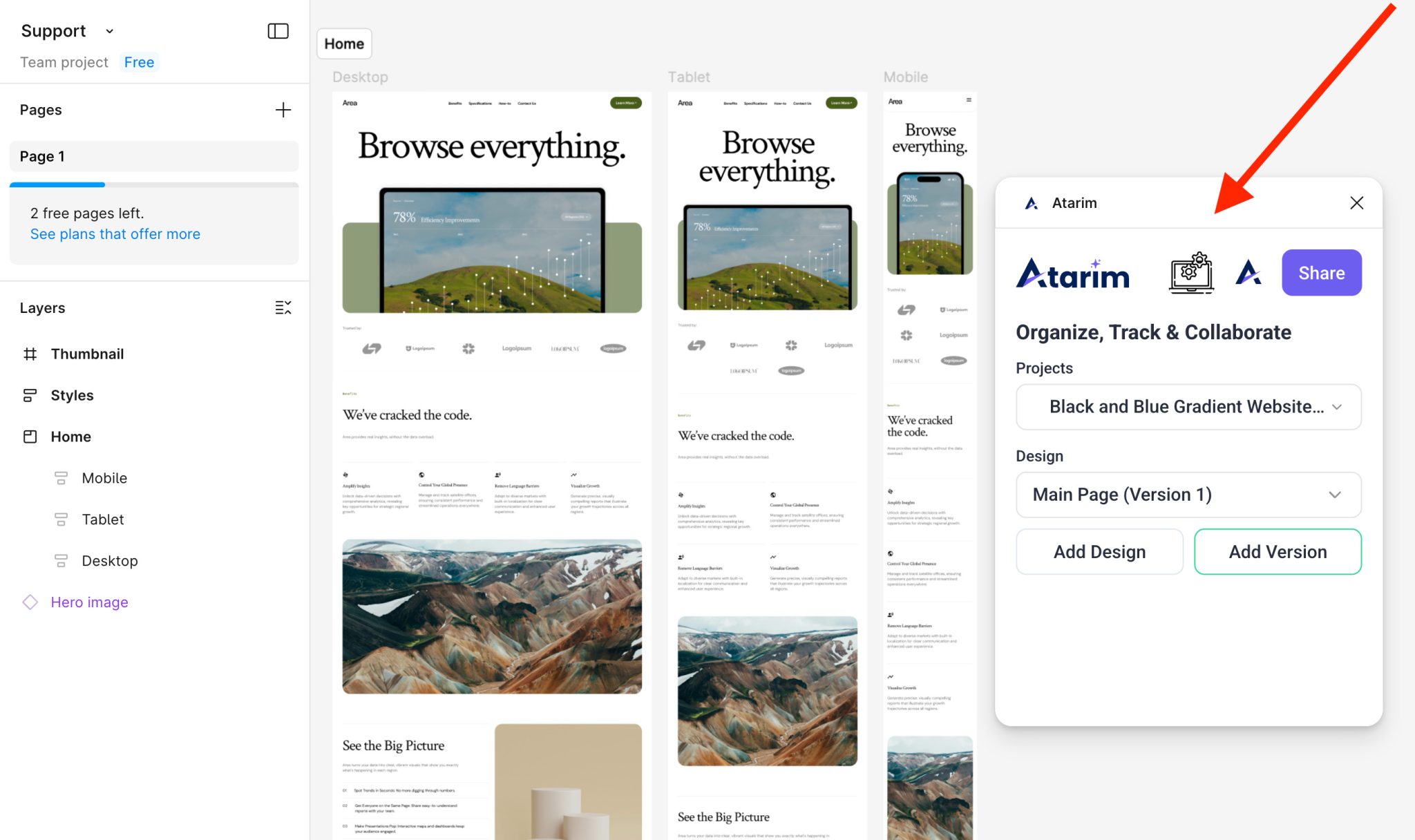
Click Add Version
Choose the corresponding page
Add New Versions
Tip: Use versioning at key checkpoints — before sending to clients or developers.
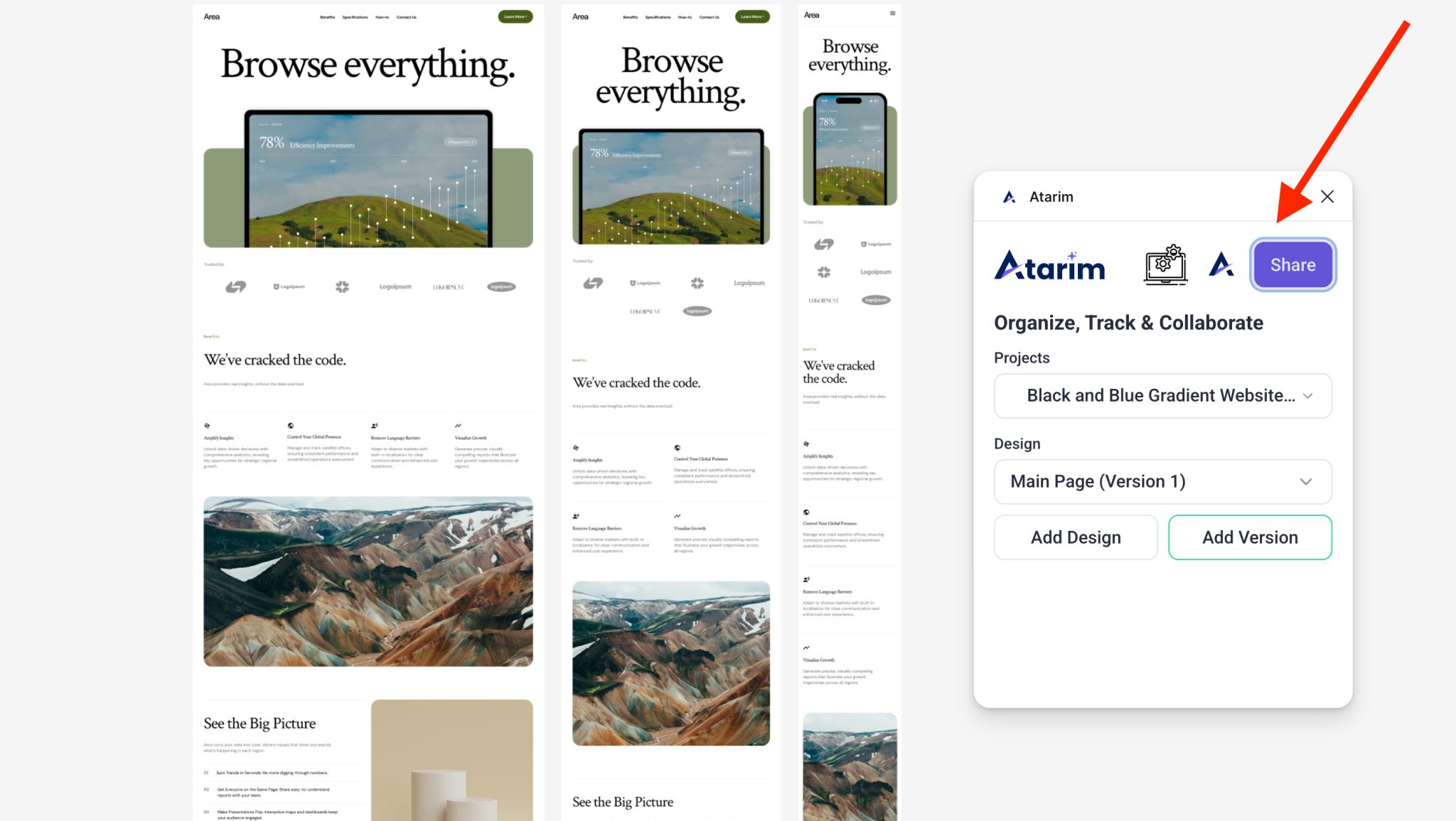
Step 5: Share the Project
Instructions:
Click Share in the plugin or Atarim project view
Invite teammates or clients
Viewers can comment and collaborate without Figma access
Share the Project
Share the project to open it directly in Atarim
Tip: Use the “Copy Link” option to drop feedback links into Slack or project tools.
Understanding the Rebuilt Graphics Collaboration View
Designs are displayed top-to-bottom, not scattered across pages.
Benefits:
Clear feedback flow
No aimless canvas navigation
Precise comments per design element
Easy version switching
Recommendation: This layout is ideal for client reviews and structured feedback sessions.
FAQs
Can clients comment without a Figma account?
Yes — they use Atarim only. No Figma login is needed.
Do I lose anything when I push to Atarim?
No. All Figma design fidelity is retained. Comments are layered on top in Atarim.
Can I push to an existing Atarim project?
Yes — select the existing project in the plugin before adding frames.
What happens if I update a frame but don’t push a new version?
Atarim won’t track the update unless you explicitly push it as a new version. For full version history, always use “Add Version” in the plugin.
Can clients see version history?
Yes — when they view a design in Atarim, they can switch between versions using the version selector on the design page.
Conclusion
The Atarim Figma Plugin helps design teams push beyond comments by turning feedback into clear, structured tasks — with built-in versioning and centralized review.
If you’re managing ongoing design iterations, client sign-offs, or developer handoffs — this plugin keeps everything aligned in one place.
Tips & best practices
Use internal-only tasks for design team notes before sharing with clients
Push only selected frames to ensure organized feedback
Use version history to limit revision loops
Prioritize design feedback to help dev teams act faster
 Integrations