Monday.com
Seamlessly connect Atarim with Monday.com to automate task management and streamline workflows.
 Integrations

Integrating Atarim with Monday.com enables you to automatically transfer tasks from Atarim to Monday.com, import entire task lists from Monday.com into Atarim, and sync specific tasks to a designated task list. This integration keeps your team organized and aligned across platforms, eliminating the need for manual task updates.
Step-by-Step Guide
1. Open Integration Settings in Atarim
To begin, access your integration settings from within your Atarim dashboard.
Instructions:
- Log in to your Atarim Dashboard.
- Choose Monday from the Integration Settings
- Select Settings from the dropdown.
- Toggle the switch to enable the Monday integration.

Tip: Only Admin-level users can manage integration settings. Make sure you have the correct role before proceeding.
Note: Toggling this on will prepare the platform to accept your Monday API key.
2. Retrieve Your Monday API Key
You’ll need to fetch your unique API key from your Monday account to connect it with Atarim.
Instructions:
- Log into your Monday.com account.
- Click on your avatar in the top right corner.
- Select Administration.
- Click Connections on the left side of the admin page.
- Select API in the top menu.
- Click Generate
- Copy the generated API Key from the screen.
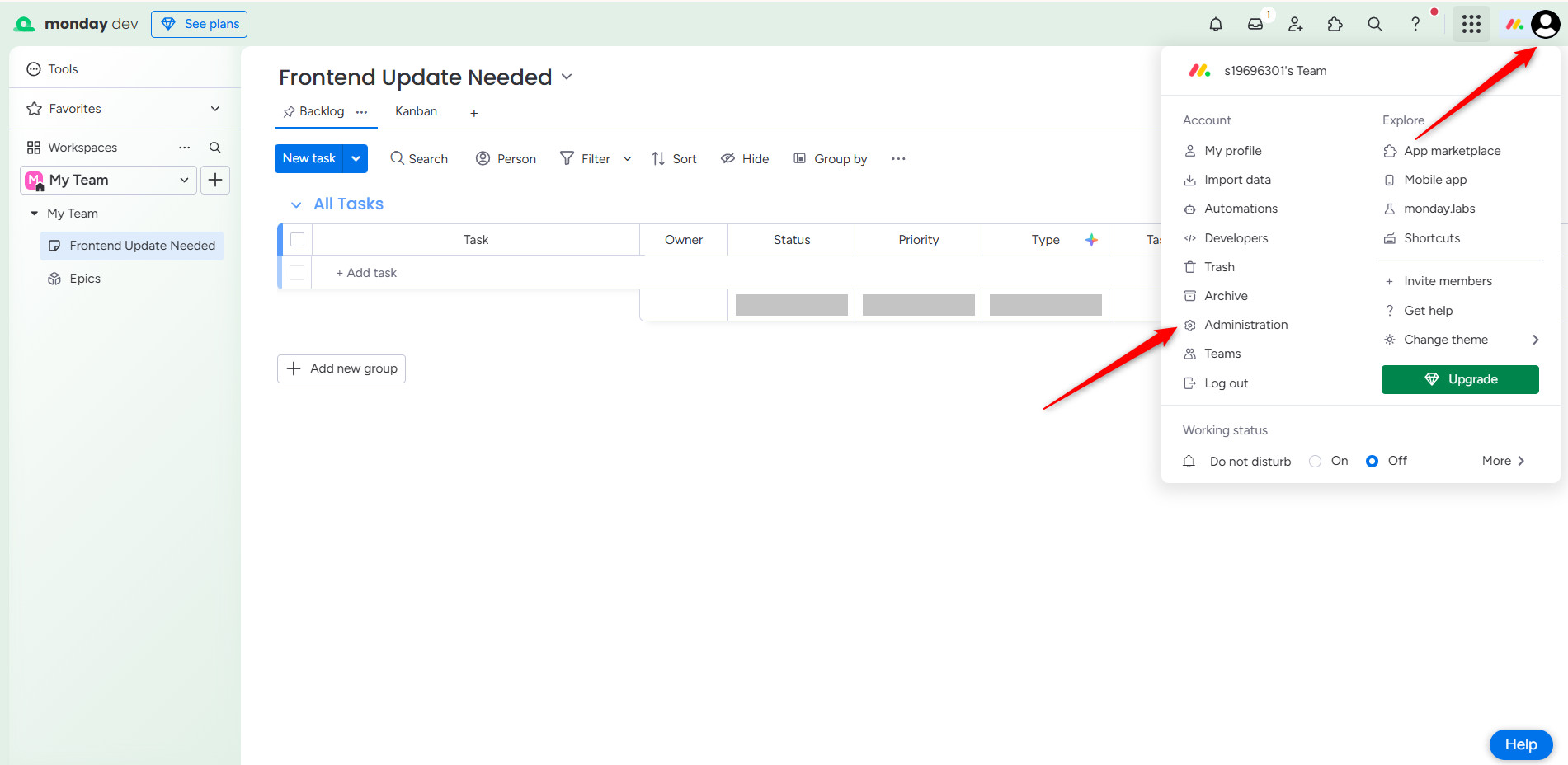


Tip: Keep your API key secure and avoid sharing it with unauthorized users.
3. Paste API Key into Atarim
Finalize the integration by entering your Monday API key into Atarim.
Instructions:
- Return to the Monday integration section in Atarim.
- Paste the copied API key into the provided field.
- Click the Submit button to connect your accounts.
- Select the workspace you want to use for Monday.
- Save the project.
- Enable the option to automatically push tasks and sync.
- Choose whether to push this to a Board or Group.
- Save the changes.


Recommendation: Once connected, test the integration by syncing a small project to ensure everything is working smoothly.
FAQs
What does the Atarim-Monday.com integration do?
It allows you to sync tasks and projects between Atarim and Monday.com, keeping both platforms updated automatically.
Which Atarim plans support this integration?
The integration is available on Atarim Pro, Business, and Enterprise plans.
Do I need a separate Monday.com account for this integration?
No, you can use your existing Monday.com account to connect with Atarim.
How do I check if my integration is working?
Try creating a new task in Atarim – if the integration is active, it will appear in Monday.com.
Conclusion
By integrating Atarim with Monday.com, you can effortlessly sync tasks between both platforms, manage website feedback alongside project tasks, and keep teams aligned with automated task tracking.
Tips & best practices
- Leverage task syncing for seamless cross-team collaboration, allowing developers to work in Atarim while project managers track progress in Monday.com.
- Configure automation rules in Monday.com to automatically assign Atarim tasks to the appropriate team members.
- Regularly verify task syncing to ensure tasks are being transferred accurately between platforms.
- Keep task statuses updated in Monday.com to reflect progress and maintain alignment with Atarim.